指南
设置 EmailEngine 邮件渠道
选择服务器、连接邮箱、让您的伙伴使用、选择 AI 回复方式、导入历史邮件,并解决常见的设置问题。
本页内容
Busymate AI reads and answers your customers' email through EmailEngine, the server that holds each mailbox's connection. Choose the server, connect the mailbox customers already write to, and decide whether your mate drafts or sends. Everything is under Console › Connections › EmailEngine, for workspace admins.
1. Choose the server
Open Server. Under Where your mail runs, pick the server this workspace uses:
- Our shared server needs no setup.
- Your own server keeps mailboxes and mail on an EmailEngine you run; see running your own server.
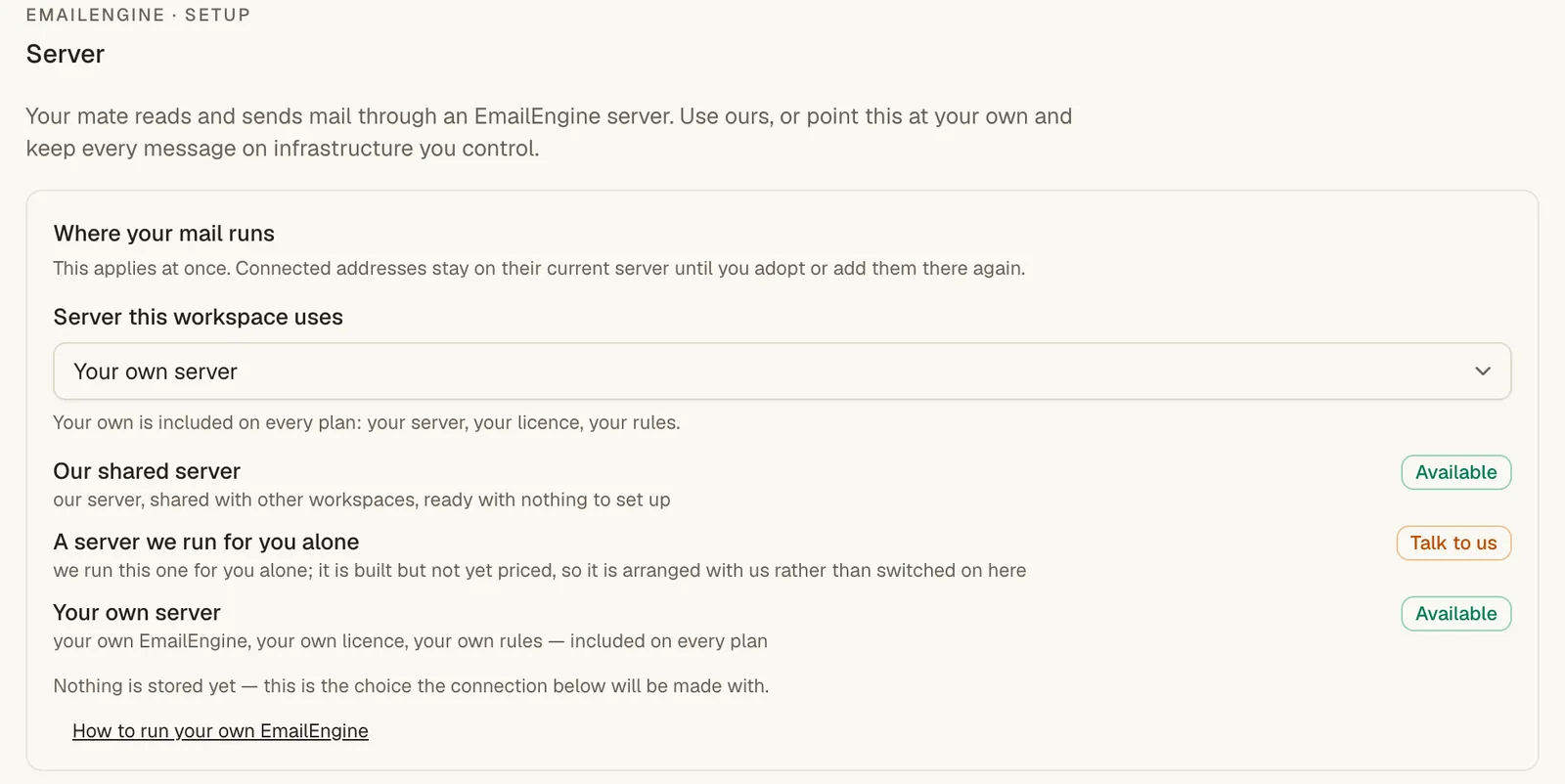
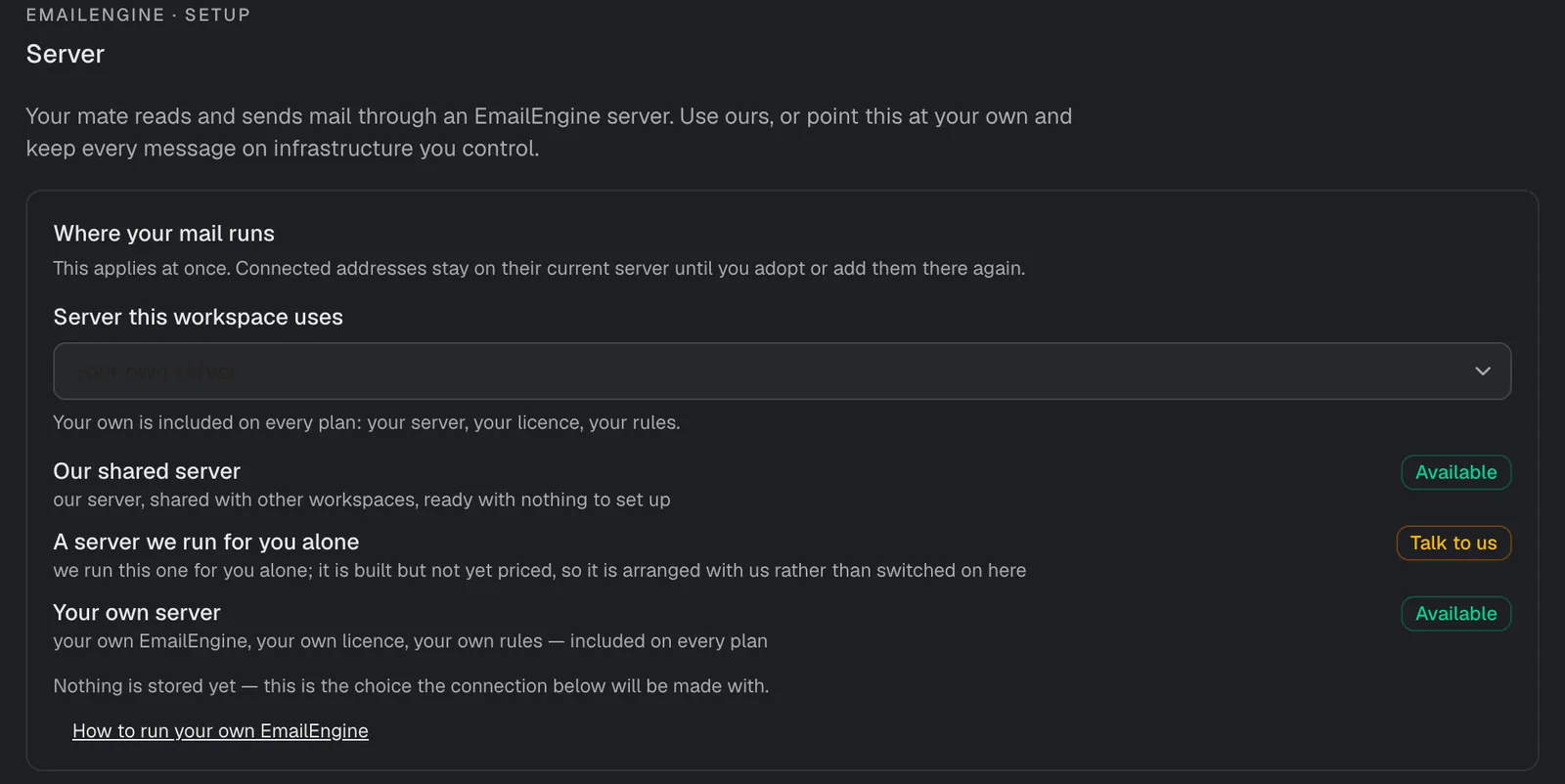
For your own server, create a token in EmailEngine under Access Tokens: scope API only, not bound to any account, with no section limits. Then fill in Connection:
- Server address: the
https://address of your EmailEngine (plainhttpis refused). - Access token: paste it. It is checked and applied at once, and never shown again.
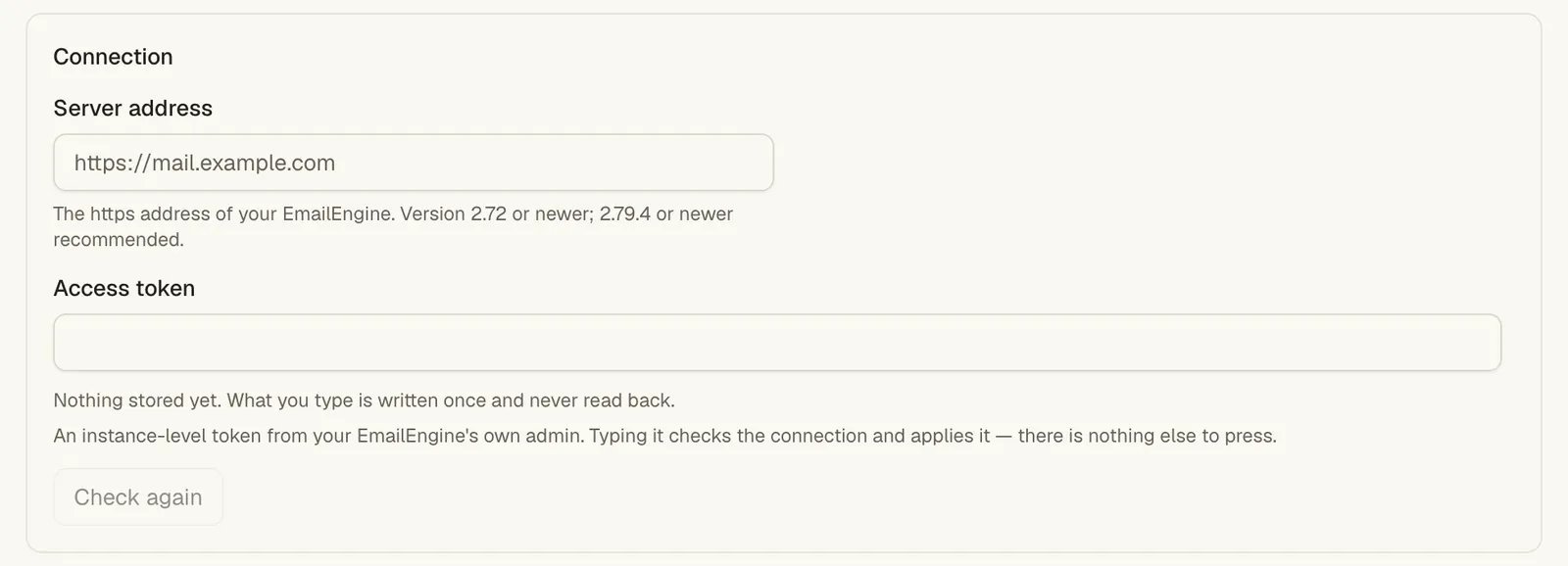
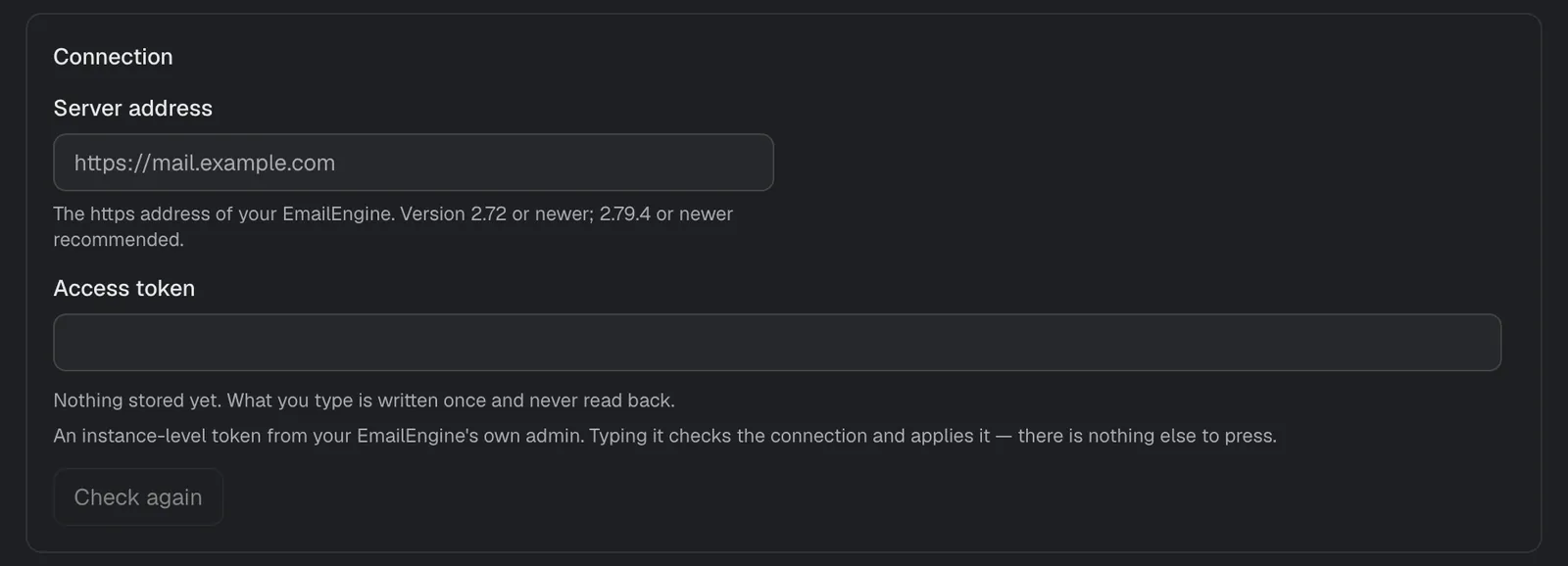
What we checked lists each check; one that could not run never counts as a pass. If a firewall filters callers, allow the addresses listed under Where we call your server from.
2. Connect a mailbox
Open Mailboxes. There are two ways in:
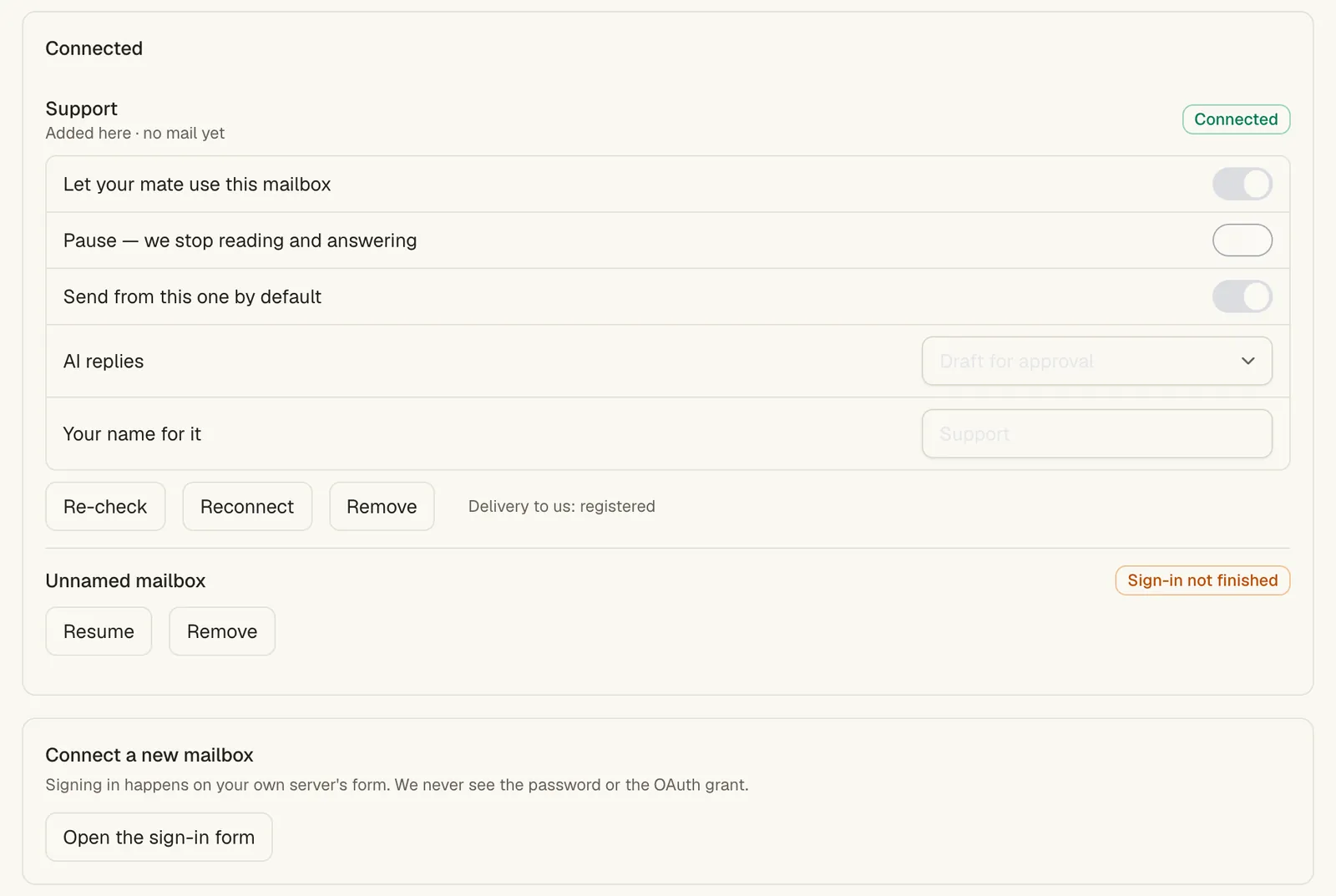
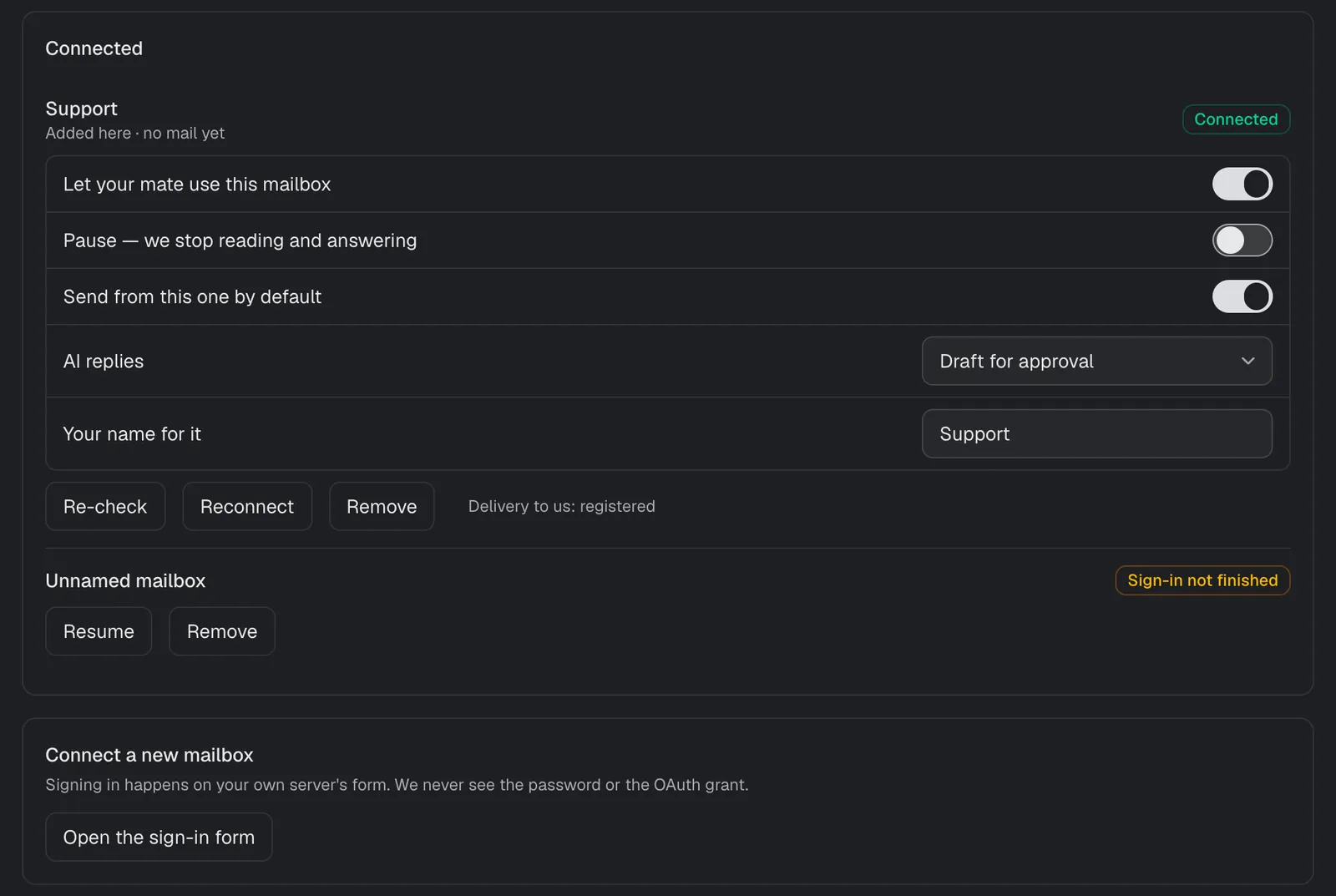
- Choose mailbox lists the accounts already on your server. Tick them and choose Use selected mailboxes: each one's webhook is pointed at us, and the card reads Delivery to us: registered. On our shared server it lists only mailboxes your own sign-ins created.
- Connect a new mailbox → Open the sign-in form opens a hosted page for IMAP, Gmail or Outlook. The password or sign-in grant stays on that page; we only learn that it worked.
An unfinished sign-in shows Sign-in not finished: Resume reopens the form, Remove deletes the half-made account.
3. Let your mate use the mailbox
A new mailbox is silent until you switch on Let your mate use this mailbox. On the same card:
- Pause stops reading and answering without disconnecting.
- Send from this one by default picks the address new mail goes out from.
- Your name for it labels it in the Console.
4. Choose how AI replies
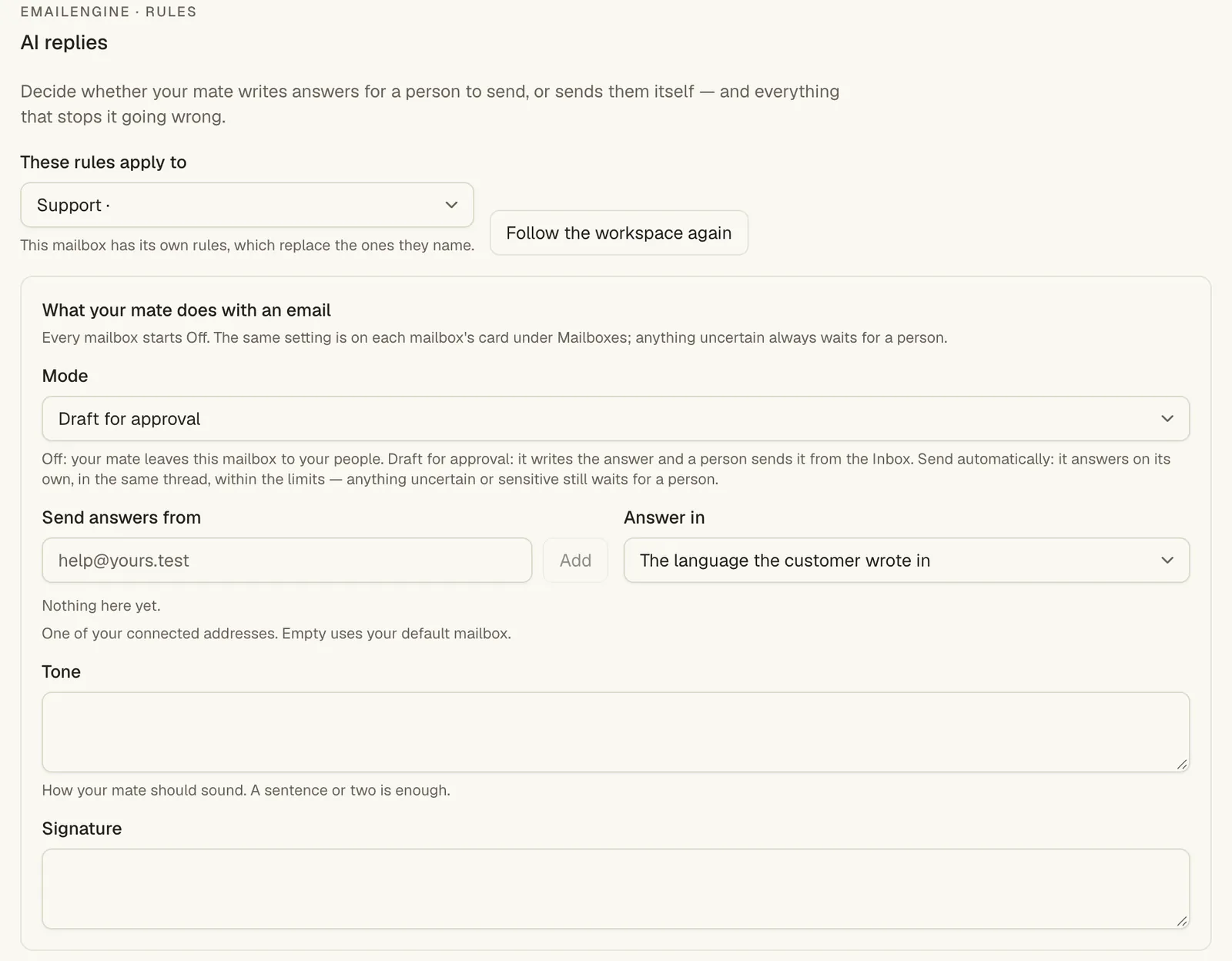
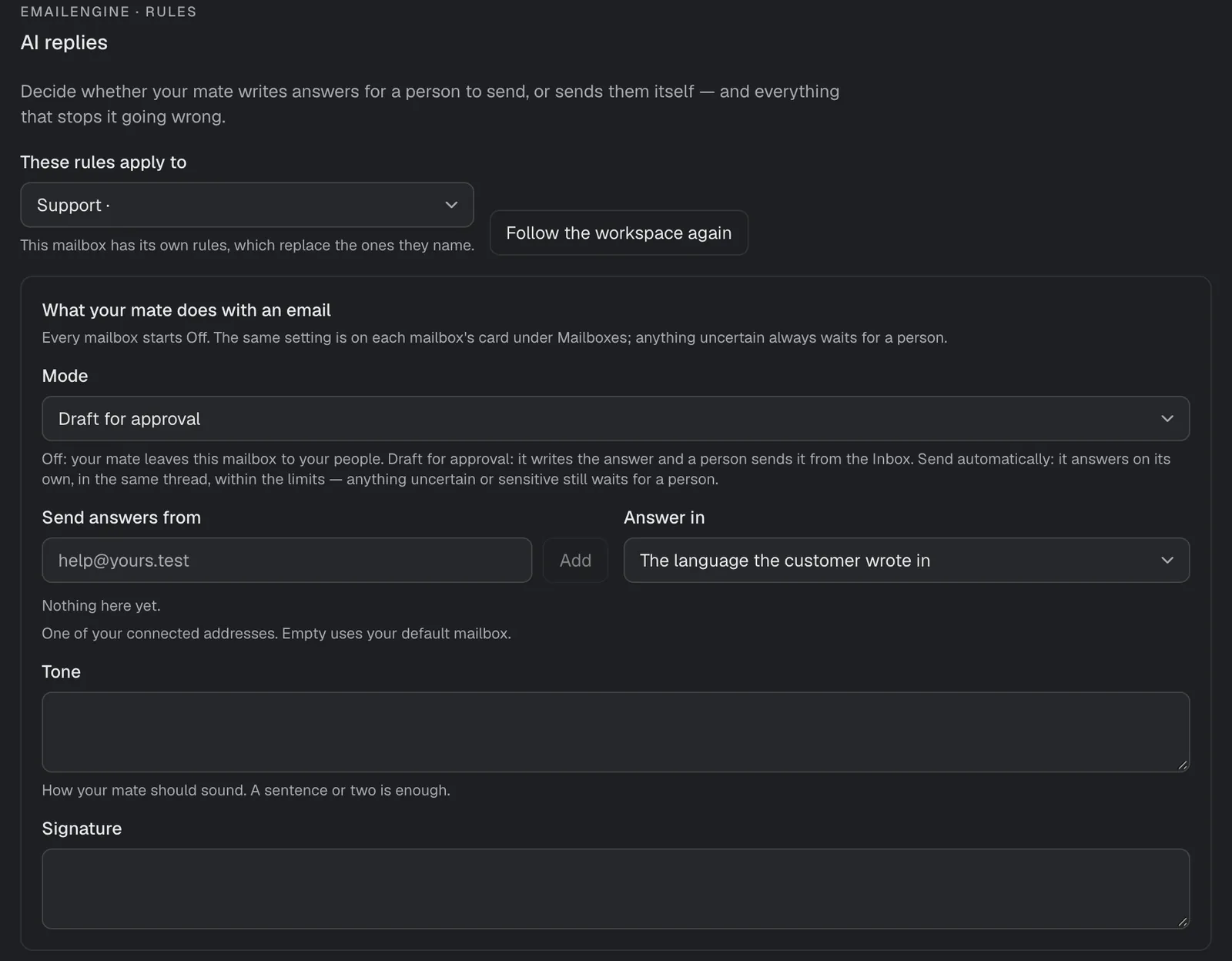
AI replies has three settings, and every mailbox starts on Off:
| Setting | What your mate does |
|---|---|
| Off | Nothing. Your team answers. |
| Draft for approval | Writes the answer; a person reviews, edits and sends it from the Inbox. |
| Send automatically | Answers in the same thread on its own, within the limits below. Anything uncertain or sensitive still waits for a person. |
It is one setting in two places: the mailbox card, and Rules › AI replies with that mailbox chosen under These rules apply to, which also sets tone, signature, language and Topics a person always answers.
5. Import existing mail
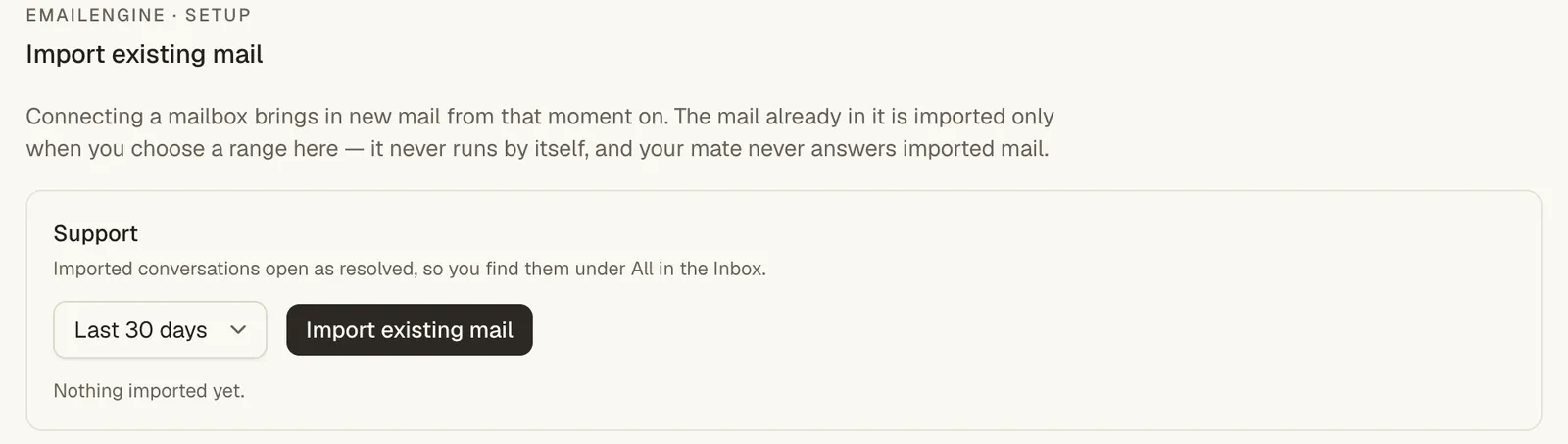
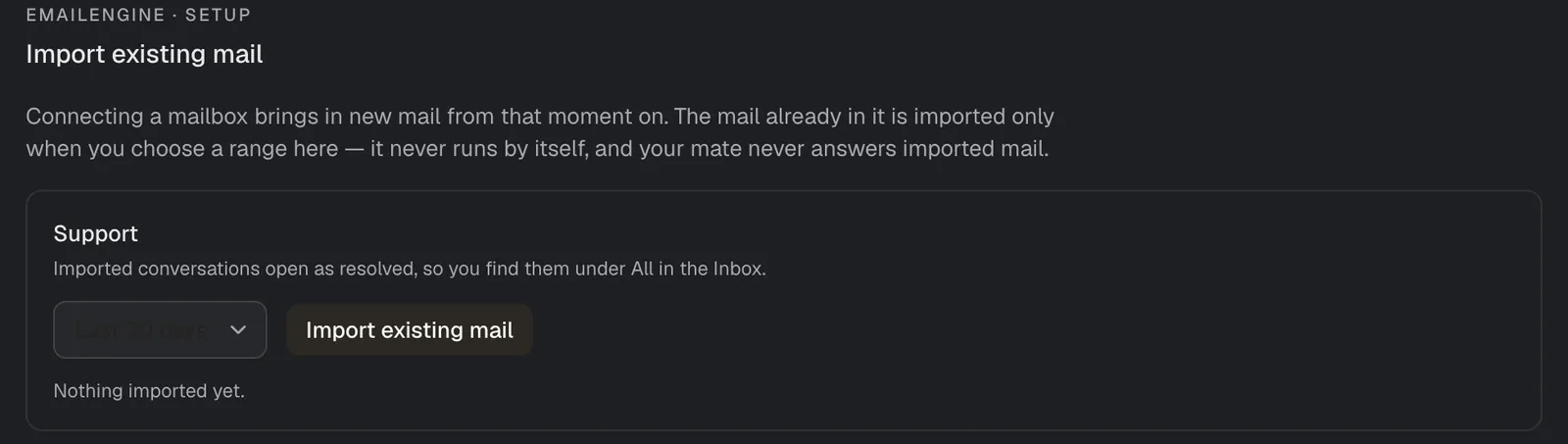
Connecting brings in new mail only. For older mail, open Import existing mail, pick Last 7 days, Last 30 days or Last 90 days, and start it. Imported threads arrive resolved under All in the Inbox, and your mate never answers them. A rerun never duplicates.
The rules your mate always follows
These hold in every mode:
- It never answers auto-replies, bounces, mailing lists, bulk mail or no-reply senders.
- It stays out of a thread for 30 minutes after a teammate replied, and while someone has taken it over.
- Send automatically caps replies at 3 per thread and 3 per sender a day, 30 per mailbox and 120 per workspace an hour. Past a cap, the reply is saved as a draft.
- A topic on your list, low confidence or anything sensitive hands the thread to a person, marked Needs human.
- Two near-identical replies in one thread stop it: that is a mail loop.
Where the mail shows up
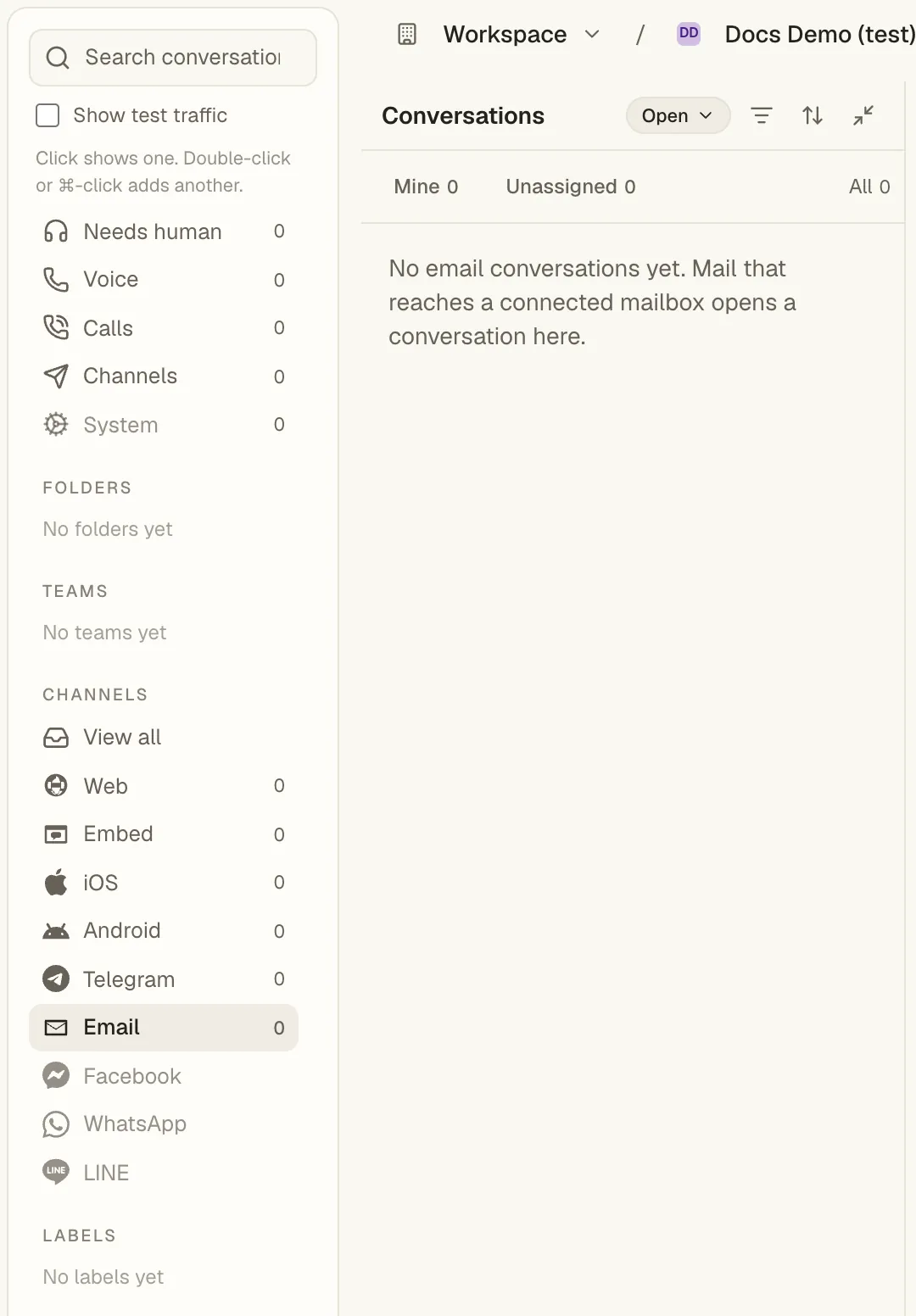
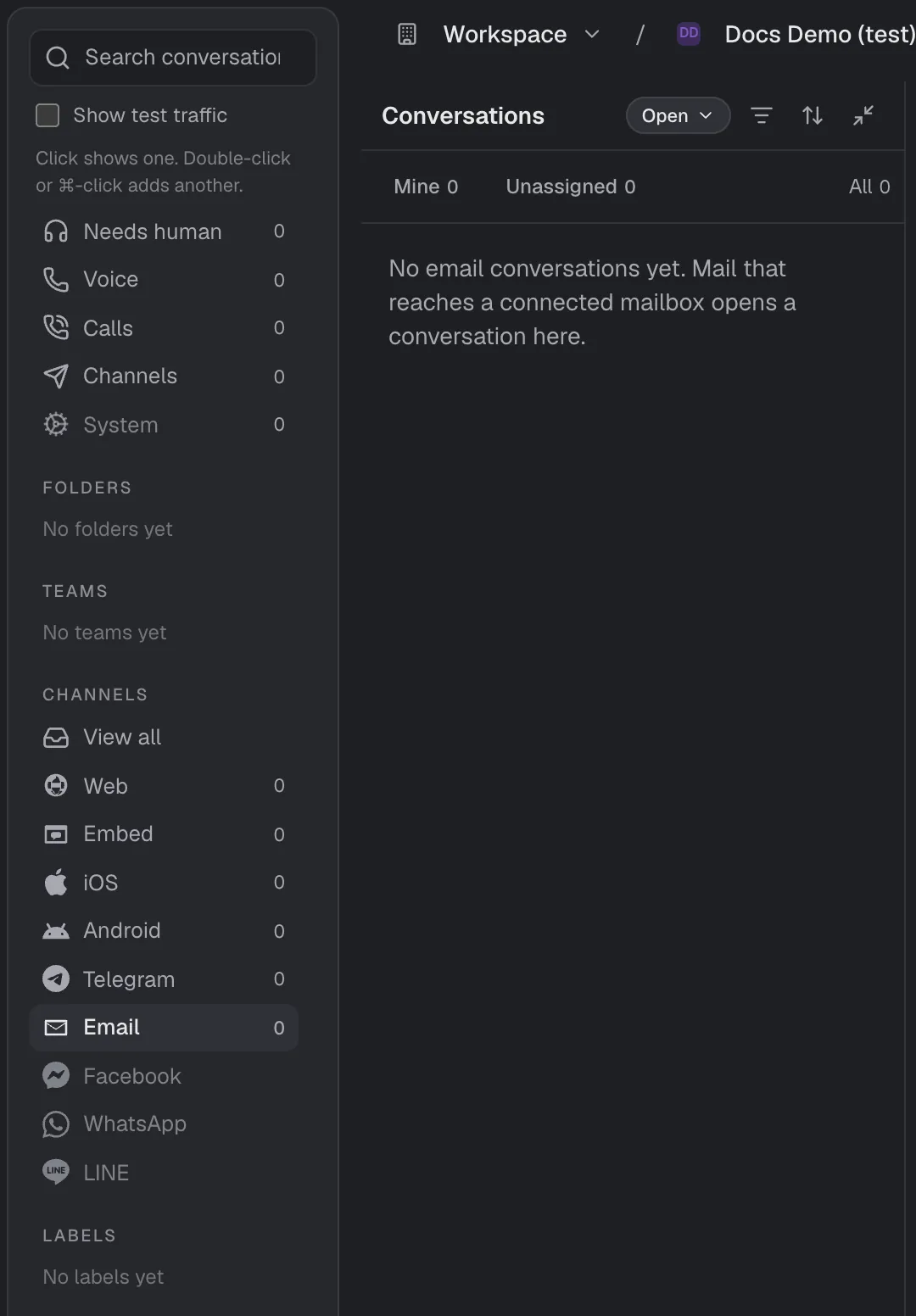
Mail lands in the Inbox under Channels › Email, threaded with the customer's earlier mail. Click a channel to show only it; double-click or ⌘-click to add another. Drafts wait inside their conversation.
Automate it over MCP
Every step is also a tool on your workspace's MCP endpoint, with the Console's permissions: get_email_instance, set_email_instance, set_email_instance_mode, test_email_instance, list_email_engine_accounts, bind_email_mailbox, connect_email_channel, unbind_email_mailbox, list_email_instance_mailboxes, set_email_mailbox_settings, set_email_channel_settings, get_email_ai_policy, set_email_ai_policy, import_email_history, get_email_import_status and run_email_diagnostics.
Troubleshooting
- Inbox › Email is empty. The mailbox is not bound here, or it lives on another server than the one chosen on Server.
- Used by another workspace. Remove it from that workspace first.
- The token is refused (401). It is bound to one account or lacks the API scope. Create an instance-wide API token.
- The address already sends its events to its own webhook. Clear that webhook on your EmailEngine, then choose the mailbox again.
- Sign-in not finished. Choose Resume, or Remove and start over; a sign-in link lasts 24 hours.
Still stuck? Write to hi@busymate.ai.
Verify
- Mailboxes shows your address as Connected with Delivery to us: registered.
- Let your mate use this mailbox is on and AI replies reads Draft for approval.
- Email that address from an account you do not otherwise use: the thread appears under Channels › Email with a draft waiting.
- Send the draft: it arrives threaded in the sender's mailbox.
问题
Do I need my own EmailEngine server?
No. Our shared server works on every plan. Your own keeps mailboxes and mail on infrastructure you control.
Will my mate send email without asking?
Only on Send automatically, which you switch on per mailbox. Every mailbox starts on Off, and a new mailbox stays silent until you switch it on in step 3.
Does importing old mail trigger replies?
No. Imported threads arrive resolved under All, and your mate never answers them.
Can one mailbox serve two workspaces?
No. A mailbox belongs to one workspace, and the other workspace sees it as used.